
1. Introduction — What Do “Facial Tracking” and “Eye Tracking” Mean?
In VRChat, the phrase “FBT” (full-body tracking) usually refers to motion tracking from the waist down to the feet.
However, facial tracking (tracking of facial expressions) and eye tracking (tracking of gaze/eye movement) are not normally included in FBT.
When people say “FBT + eye/face tracking support,” what they mean is:
-
Full-body motion tracking
-
Eye movement tracking
-
Facial expression tracking
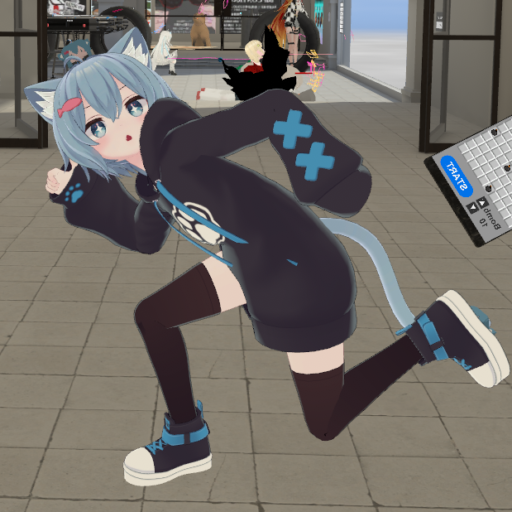
Combined together, your avatar can blink, look around, and change facial expressions naturally in VRChat, in addition to moving its body.

- 1. Introduction — What Do “Facial Tracking” and “Eye Tracking” Mean?
- 2. The Basic Setup Flow (3 Steps)
- 3. Devices Available for Facial & Eye Tracking
- 4. Step 1 — Hardware Setup
- 5. Step 2 — Avatar Setup (Unity Side)
- 6. Step 3 — VRChat Setup
- 7. Performance Considerations
- 8. Device Availability Status (as of August 2025)
- 9. Warnings & Notes
- 10. Conclusion
フェイシャルトラッキング、フェイストラッキング(顔トラ)の対応方法を紹介しますが、顔トラの対応方法や設定方法含めて、先人の方々が実践済みです。
2. The Basic Setup Flow (3 Steps)
The overall setup for eye + face tracking can be summarized in three steps:
-
Hardware & software installation
– Acquire the necessary headset/trackers and install their drivers/tools. -
Avatar setup in Unity
– Adjust the avatar’s parameters and blendshapes to support eye/facial tracking. -
Enable and test in VRChat
– Run VRChat with VRCFaceTracking or other middleware to link everything.

3. Devices Available for Facial & Eye Tracking
Currently, there are several hardware options, though some have been discontinued. I will list them here, from the better-known ones to the more experimental:
-
Vive Pro Eye + VIVE Facial Tracker
– Both discontinued. Previously popular because they were “official” devices, but now hard to obtain. -
XR Elite + dedicated facial tracker
– Still sold, but not recommended due to performance and limited support. -
Focus Vision + dedicated facial tracker
– Same as above, not widely adopted. -
Quest Pro
– Was once a strong candidate thanks to built-in facial and eye tracking.
– However, as of 2025 it has been officially discontinued. Secondhand units remain. -
Varjo Aero / Pimax Crystal / Pico 4 Enterprise
– Premium PCVR headsets with eye tracking features. Prices are high, but still available. -
Bigscreen Beyond 2e (upcoming)
– Expected to include eye tracking support in the next generation. -
Standalone facial trackers (face only, no eyes)
– Some exist as small external add-ons, but quality varies. -
DIY solutions
– Hobbyist approaches. Experimental, compatibility not guaranteed.
💡 Note: Because discontinued devices are common in this category, availability can be a big problem. Beginners should ideally start with something they can currently buy and test.
4. Step 1 — Hardware Setup
Here are the practical methods for setup depending on your device:
-
XR Elite with dedicated face tracker
– Supported but not recommended due to limited performance. -
Focus Vision with facial tracker
– Same limitations. -
Quest Pro + VRCFaceTracking
– Still one of the more straightforward setups if you can obtain the headset. -
Varjo Aero / Pimax Crystal
– Premium, but provide stable eye tracking with proper setup.
Installation Notes
-
Connect the facial tracker module to your HMD if required (e.g. VIVE Facial Tracker, Quest Pro built-in).
-
Install the official drivers and confirm Windows recognizes the device.
-
Make sure SteamVR detects the headset + facial tracker.
5. Step 2 — Avatar Setup (Unity Side)
Your avatar must support facial and eye tracking. Without this, the hardware won’t matter.
-
Many commercial avatars already provide blendshapes for expressions.
-
If your avatar doesn’t, you can use tools like FaceTra Shape Creator to generate blendshapes (blink, smile, eyebrow movement, etc.).
-
Import your avatar into Unity, add the blendshapes, and adjust the parameters to match the facial tracker’s outputs.
-
Once prepared, upload the avatar again with these features enabled.
6. Step 3 — VRChat Setup
-
Install VRCFaceTracking (community middleware for face tracking).
-
In VRChat, open settings and enable eye tracking + facial tracking.
-
Test in front of a mirror world:
– Blink → Does the avatar blink?
– Smile → Does the mouth corner move?
– Look around → Do the eyes follow?
If everything works, congratulations: you have FBT + eye tracking + facial tracking!
7. Performance Considerations
Adding facial/eye tracking increases the load on your PC. It requires real-time image capture and processing.
-
Weak PCs may crash when combining FBT + eye + face tracking.
-
Recommended:
– High-end GPU
– At least 32 GB RAM
– USB ports with stable bandwidth
If your PC is underpowered, consider upgrading memory or graphics card before attempting this setup.
8. Device Availability Status (as of August 2025)
-
Discontinued: Vive Pro Eye, VIVE Facial Tracker, Quest Pro
-
Still sold (but limited): XR Elite, Focus Vision
-
Premium but available: Varjo Aero, Pimax Crystal
-
Upcoming: Bigscreen Beyond 2e (eye tracking support expected)
In other words, the market is currently fragmented. If you are serious, it may be wise to wait for the next generation of headsets.
9. Warnings & Notes
-
Regulatory compliance: If you import hardware, check your country’s wireless/radio laws.
-
Discontinued gear: Secondhand is possible, but drivers/support may vanish.
-
DIY mods: Stability not guaranteed. Use at your own risk.
-
Community reliance: Tools like VRCFaceTracking are community-driven. Always keep them updated.
10. Conclusion
Facial and eye tracking add another layer of realism to VRChat.
With FBT, your avatar’s body moves like you. With facial + eye tracking, your avatar’s expressions and gaze also reflect you.
Smiles, blinks, subtle eyebrow movements — these make a huge difference in how “alive” your avatar feels.
The downside is complexity: discontinued hardware, high PC requirements, and setup effort.
But once you experience it, it’s hard to go back.
FBT + facial + eye tracking is the future of VRChat immersion.